You import a spreadsheet and you noticed in some of your fields you have a little box with a question mark in it (see image below). This is a Carriage Return (Alt+Enter in Excel).
To remove create an UPDATE query and run against the offending field…
UPDATE YourTable SET FieldContainingCarriageReturn = Replace([FieldContainingCarriageReturn],Chr(10),Space(1))
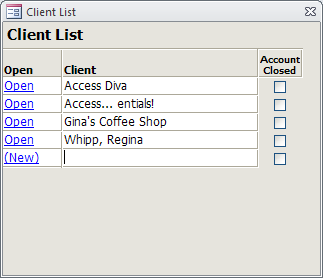
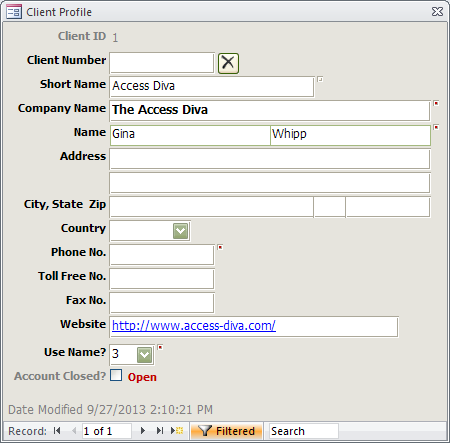
You’re using a Continuous Form, you can’t fit all your fields on the Form but you need to see and/or edit the record and you don’t want to use a Command Button. (Sample file located at the bottom of the article.) Here’s an alternate way to open the record with a Field…
Client List
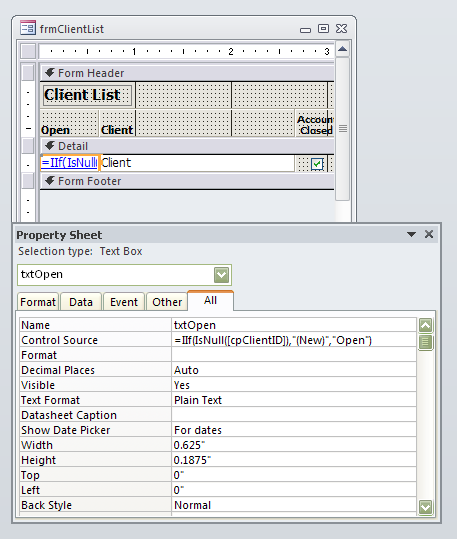
a. Put an UNBOUND field on your Form and enter the below as the Control Source (Figure 1). Note, where cpClientID is my Autonumber and Primary Key you should replace with your Autonumber and/or Primary Key…
=IIf(IsNull([cpClientID]),"(New)","Open")
Figure 1
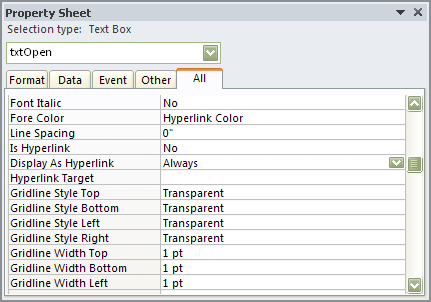
b. In the Properties Sheet window for your Field set the Display As Hyperlink to Always. Note, you can leave the Font Color as Hyperlink Color or change to any color you like. However, since most Users are accustomed to the blue it is safer to accept the default Font Color of Hyperlink Color.
Figure 2
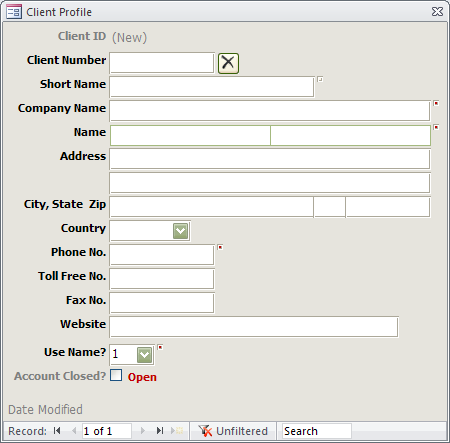
c. Now, just add a bit of code the On_Click event to open your details form (See sample of my frmClientProfile below)…
If (IsNull(txtClientID)) Then
    'If the Field displays (New)
    DoCmd.OpenForm "frmClientProfile", , , ,acFormAdd
Else
    'If the Field displays Open
    DoCmd.OpenForm "frmClientProfile", , ,"[cpClientID]=" & Me![txtClientID]
End If
In Access 2003 or lower you set your Controls to have the Sunken effect. You upgraded and now you have lost it. To get the Sunken effect back you must…
1. Go to Design View of your Form
2. Click on the Field(s) you want to have the Sunken effect
3. Select a color for the Outline (I use light grey)
While the 4-Pointer cursor is showing, usually when on the Title Bar, click and hold the mouse key and drag. To return it back to its docked position, double-click the Title Bar.
A UNION query takes data from two (or more) tables and/or queries and makes it appear as if it is from one source, i.e…
SELECT FieldName, FieldName
FROM 1stTableOrQueryName
UNION SELECT FieldName, FieldName
FROM 2ndTableOrQueryName
UNION SELECT FieldName, FieldName
FROM 3ndTableOrQueryName;
A few points…
1. UNION queries are READONLY, no edits allowed!
2. In the above rendition there can be no duplication of the rows returned. If any duplicate rows are specifically required to be returned, a UNION ALL operation should be used. However, I rarely find a reason to want duplicate rows in a UNION query.
3. These queries can *run* slowly so use them sparingly.
4. The Column Count must be the same for each query. If they do not match up you can use Null in place of a field name as a placeholder, i.e…
SELECT FieldName, FieldName
FROM 1stTableOrQueryName
UNION SELECT FieldName, Null
FROM 2ndTableOrQueryName
UNION SELECT Null, FieldName
FROM 3ndTableOrQueryName;
5. You can specify Column Names…
Specify Column Names
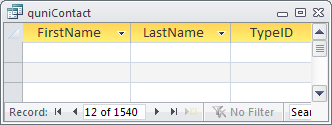
SELECT FieldName AS FirstName, FieldName AS LastName, FieldName AS TypeID
FROM 1stTableOrQueryName
UNION SELECT FieldName, FieldName, FieldName
FROM 2ndTableOrQueryName
UNION SELECT FieldName, FieldName, FieldName
FROM 3ndTableOrQueryName;
You only need to do this for the first query as the following queries will adopt whatever Column Name(s) is specified in the first query.
6. You can use ORDER BY in a UNION query, i.e…
ORDER BY LastName
SELECT cpFirstName, cpLastName
FROM 1stTableOrQueryName
UNION SELECT FieldName, FieldName
FROM 2ndTableOrQueryName
UNION SELECT FieldName, FieldName
FROM 3ndTableOrQueryName ORDER BY cpLastName;
When specifying the ORDER BY you must use the FieldName from the first query as in the subsequent Tables and/or Queries the Field Names may not match or exist.
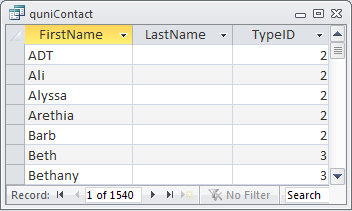
7. You can use Placeholders to *add* additional information (columns) to your query as shown in (5.), i.e…
For numeric, because the Field will default to TEXT you must declare it as NUMERIC…
SELECT FieldName, FieldName, Val(1) AS TypeID
FROM 1stTableOrQueryName
UNION SELECT FieldName, FieldName, Val(2)
FROM 2ndTableOrQueryName
UNION SELECT FieldName, FieldName, Val(3)
FROM 3ndTableOrQueryName;
…or for TEXT just type as usual…
SELECT FieldName, FieldName, “M” AS ItemID
FROM 1stTableOrQueryName
UNION SELECT FieldName, FieldName, “C”
FROM 2ndTableOrQueryName
UNION SELECT FieldName, FieldName, “S”
FROM 3ndTableOrQueryName;
Now, when you run your SELECT query you can filter on the Placeholder.
8. You can use IIf()Statements in your UNION query, however, because this type of query can run slowly, use sparingly…
SELECT FieldName, FieldName, Val(1)
FROM 1stTableOrQueryName
UNION SELECT FieldName, FieldName, Val(2)
FROM 2ndTableOrQueryName
UNION SELECT FieldName, FieldName, IIf([cpChecked]=0,Val(3)
FROM 3ndTableOrQueryName;
You’ll notice the Field *cpChecked* is not in the query itself. It does not have to be, it only needs to be in the Table or Query used.
There will be times when inherit a database and the Field Names are all in capital letters. You want to convert them to CamelCase but when you try they revert back to all capital letters. Here are two different ways to handle that…1.
a. Change the Field Name by adding a letter to the end of the existing Field Name, Save.
b. Then change the Field Name to CamelCase and Save
OR
Make sure that Enable design changes for tables in Datasheet view is checked n order for this to work.
2. a. Open the Table in Datasheet View and the Fields Ribbon will appear, see below
Fields Ribbon
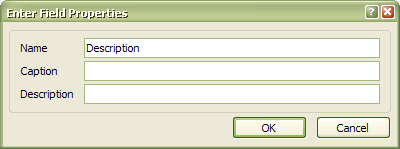
b. From here select Name & Caption and adjust the Name, click OK and continue until you have adjusted all the Field Names in the Table…
Name & Caption
Note: From here you can set the same Field Properties that you set if the Table was in Design Mode.
Several reasons for this… Could be the Excel spreadsheet has too many columns, could be there is some corruption in the Excel spreadsheet, could be the way Access is translating your columns in Excel, could be there are calculated fields in Excel that Access can’t translate for whatever reason. Review the checklist below and see if adjusting corrects your issue.
Checklist…
How many columns is the spreadsheet? An Access table cannot have more then 255 fields.
Do you have any calculated columns? If you do, insert a column, copy the calculated column and paste just the values to the newly inserted row, then delete the calculated column.
Have you looked at the spreadsheet to confirm there are no errors on the sheet?
Are you using the wizard or did you write some code? If you wrote some code review for accuracy.
Have you tried it manually? (You know, File… Import…) If that works and you are using code you will need to review your code. Still unsure? Post code with issue to one fo the Forums posted on the left.
Do your column headings use any Reserved Words (or Wildcard Characters) that might confuse Access? You will need to adjust those names. See link below for a complete list.
The message indicates that the 3rd argument you are supplying is not correct. It may be misspelled, lacking square brackets around problem names, lacking delimiters, lacking a value (e.g. where you concatenate a Null), lacking an operator, or something else.

 Access MVP (2010-2015)




Recent Comments
No comments.